
|
For your hospital's MDM administrator. Most of these are set once, by Lincata, when your MDM is first set up. You'll rarely need to change them. |
Where: Setup → Server Settings
Settings are grouped into five categories. Pick one from the Categories dropdown, click Edit, make your change, and Save.
Category |
What it's for |
When you'd change it |
|---|---|---|
|
Site Details |
Your hospital's name, phone, and address in MDM |
Rarely — if your site info changes |
|
|
Lets MDM send password-reset emails |
Once, during setup, with your IT team |
|
Locale & Time |
Language, country, and time zone |
Once, during setup |
|
Devices |
Registration PIN and how mass reboots are paced |
Occasionally, e.g., to rotate the PIN |
|
Miscellaneous |
Password policy and a few system settings |
To match your hospital's password policy |
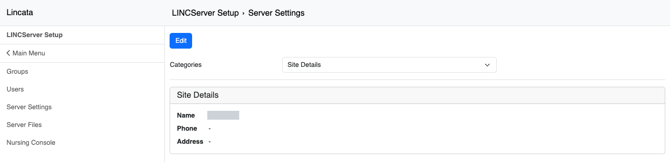
Site Details
Name, phone, and address for your site. These are for reference inside MDM.
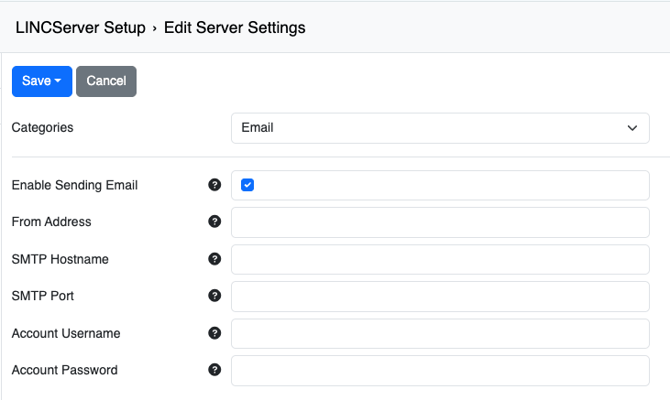
MDM uses email to send password-reset links to your users. Without it, users who forget a password have to ask an administrator to reset it (article 4.7). Your IT team will provide the details for your hospital's mail server:
Field |
What to enter |
|---|---|
|
Enable Sending Email |
Check to turn email on. |
|
From Address |
The address reset emails come from, e.g., no-reply@yourhospital.org. |
|
SMTP Hostname / SMTP Port |
Your mail server's address and port, from your IT team. |
|
Account Username / Account Password |
The account MDM uses to send mail, if your mail server requires one. |
Locale & Time
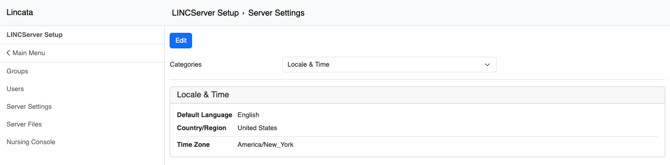
Default language, country or region, and time zone. Set the time zone to your hospital's local time, so times shown in MDM line up with what your team expects.
Devices
Setting |
What it does |
Guidance |
|---|---|---|
|
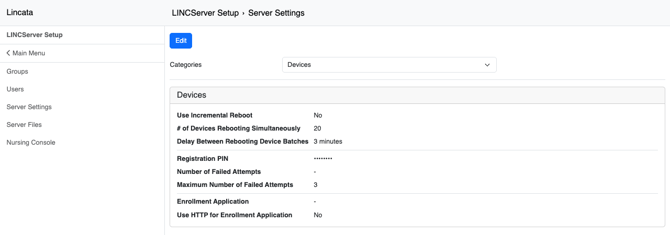
Registration PIN |
The PIN required to register a new LincTV device to your MDM. |
Share only with the people doing installs. Change it if it may have been shared too widely. |
|
Maximum Number of Failed Attempts |
How many wrong PIN entries are allowed before registration is blocked. |
Default is 3. |
|
Use Incremental Reboot |
When many devices are restarted at once, reboot them in batches instead of all together. |
Turn on for large deployments so a mass restart doesn't hit your network at once. |
|
# of Devices Rebooting Simultaneously / Delay Between Batches |
Batch size and the wait between batches when Incremental Reboot is on. |
Default is 20 devices, 3 minutes apart. |
|
Enrollment Application / Use HTTP for Enrollment Application |
Used by Lincata during device enrollment. |
Leave as is. |
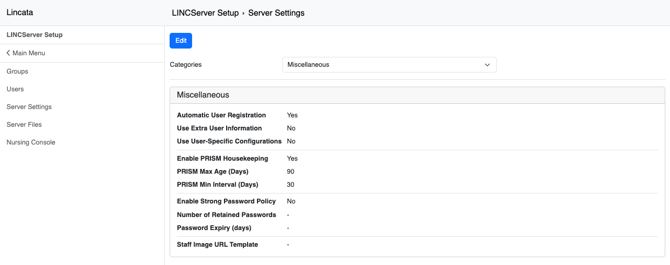
Miscellaneous
Setting |
What it does |
Guidance |
|---|---|---|
|
Enable Strong Password Policy |
Requires more complex passwords for MDM users. |
Turn on to match your hospital's password requirements. |
|
Number of Retained Passwords |
How many previous passwords a user can't reuse. |
Set to match your policy. |
|
Password Expiry (days) |
How often users must change their password. |
Set to match your policy, or leave blank for no expiry. |
|
Automatic User Registration, Use Extra User Information, Use User-Specific Configurations |
System settings managed by Lincata. |
Leave as is. |
|
Enable PRISM Housekeeping, PRISM Max Age, PRISM Min Interval |
Automatic cleanup of older system data. |
Leave as is. |
|
Staff Image URL Template |
Used by other Lincata products. |
Leave blank. |
|
⚠ Not sure what a setting does? Leave it as is and ask your Lincata contact. Some of these affect every device and user in your MDM. |