|
This article applies if you deliver TV over IPTV. If your TV signal comes through coax to the TV itself, channels are managed by your TV provider, not LincTV MDM. |
Your channel list
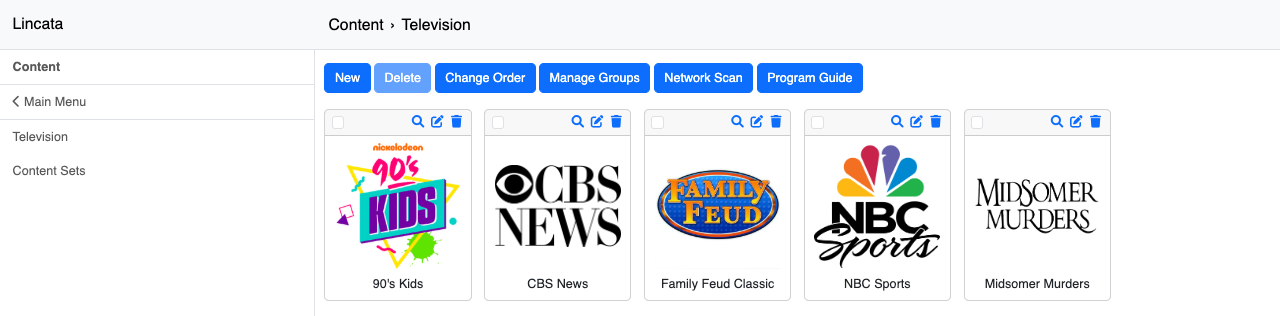
Where: Content → Television
Every IPTV channel appears as a tile with its logo. From here you can add (New), remove (Delete), Change Order, organize channels into groups (Manage Groups), scan your network for available streams (Network Scan), and manage the Program Guide.
Add or edit a channel
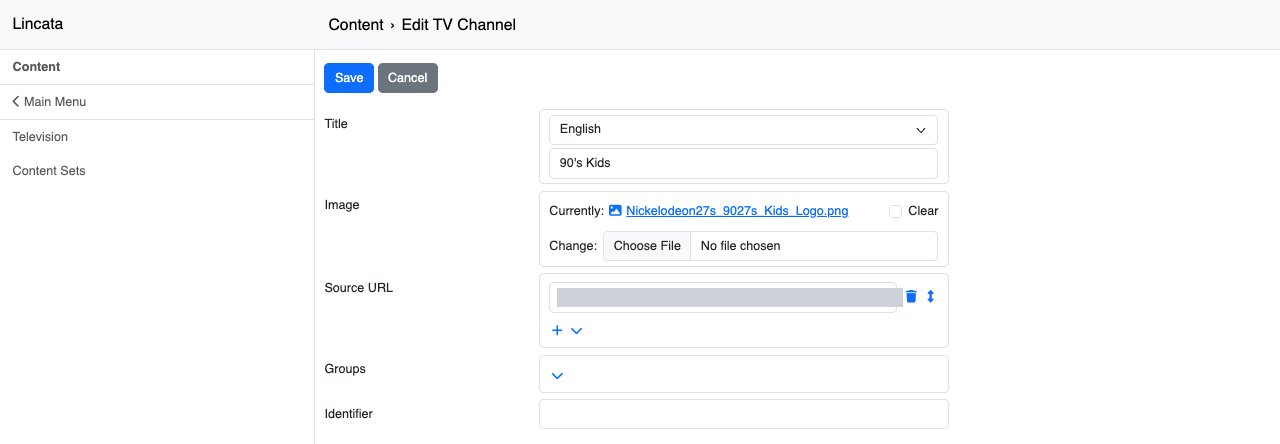
Field |
What to enter |
|---|---|
|
Title |
The channel name patients see. You can add a title per language. |
|
Image |
The channel logo. |
|
Source URL |
The stream address (often a multicast address from your headend). Your TV provider or IT team will have these. |
|
Groups |
Optional groupings, e.g., News or Kids. |
|
Identifier |
Optional. Leave blank unless your Lincata contact asks. |
Content Sets: different lineups for different units
Where: Content → Content Sets
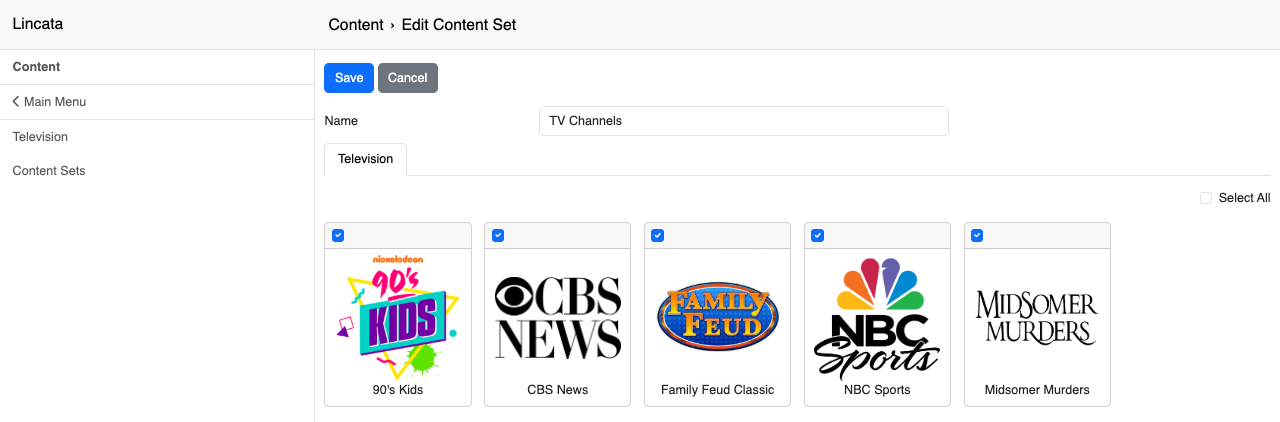
A Content Set is a chosen list of channels. Create one, check the channels it should include, and save. Then assign it to a Configuration (article 4.3) so every device in that group gets that lineup.
Example: create a “Pediatrics” Content Set with only age-appropriate channels, assign it to the Pediatrics Configuration, and every TV on that floor shows just those channels.